Custom Time Clock, from install to payroll
Staff clock in from their phone. You get the hours, the breaks, the overtime and the wage cost, ready for payroll. This guide covers every screen of version 1.0.2.
Install in five minutes
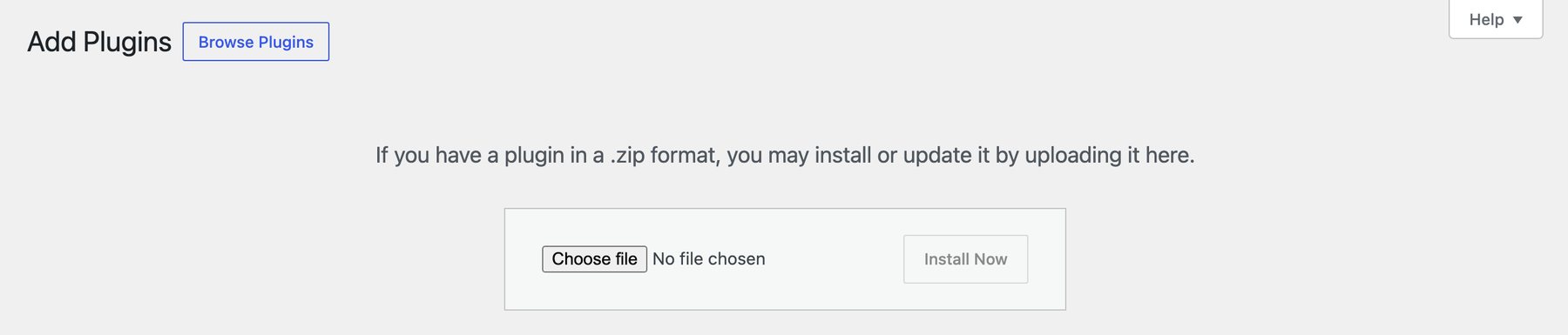
You received one file, custom-timeclock.zip. Do not unzip it.
- Go to Plugins → Add New Plugin → Upload Plugin, choose the ZIP, press Install Now and then Activate.
- Create a page called Time Clock with the shortcode
[timeclock]. Its address must end in /time-clock. - Create a page called My Dashboard with
[timeclock_dashboard]and the address /my-dashboard. - Under Settings → General choose your city as the Timezone, not UTC. Every recorded hour follows it.
Other page addresses are possible: a developer can set them with the timeclock_clock_page_url and timeclock_dashboard_page_url filters.
Add each employee once
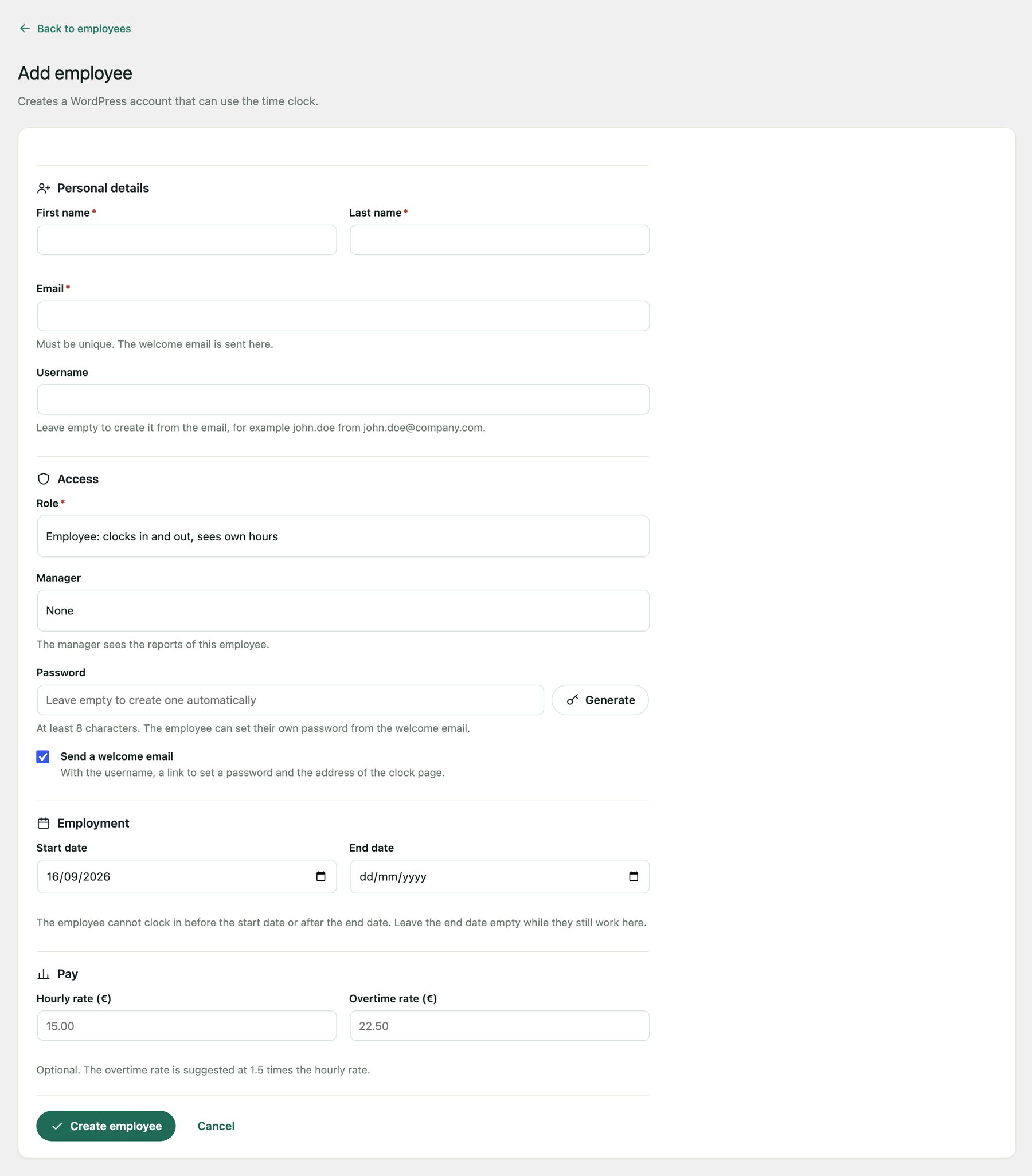
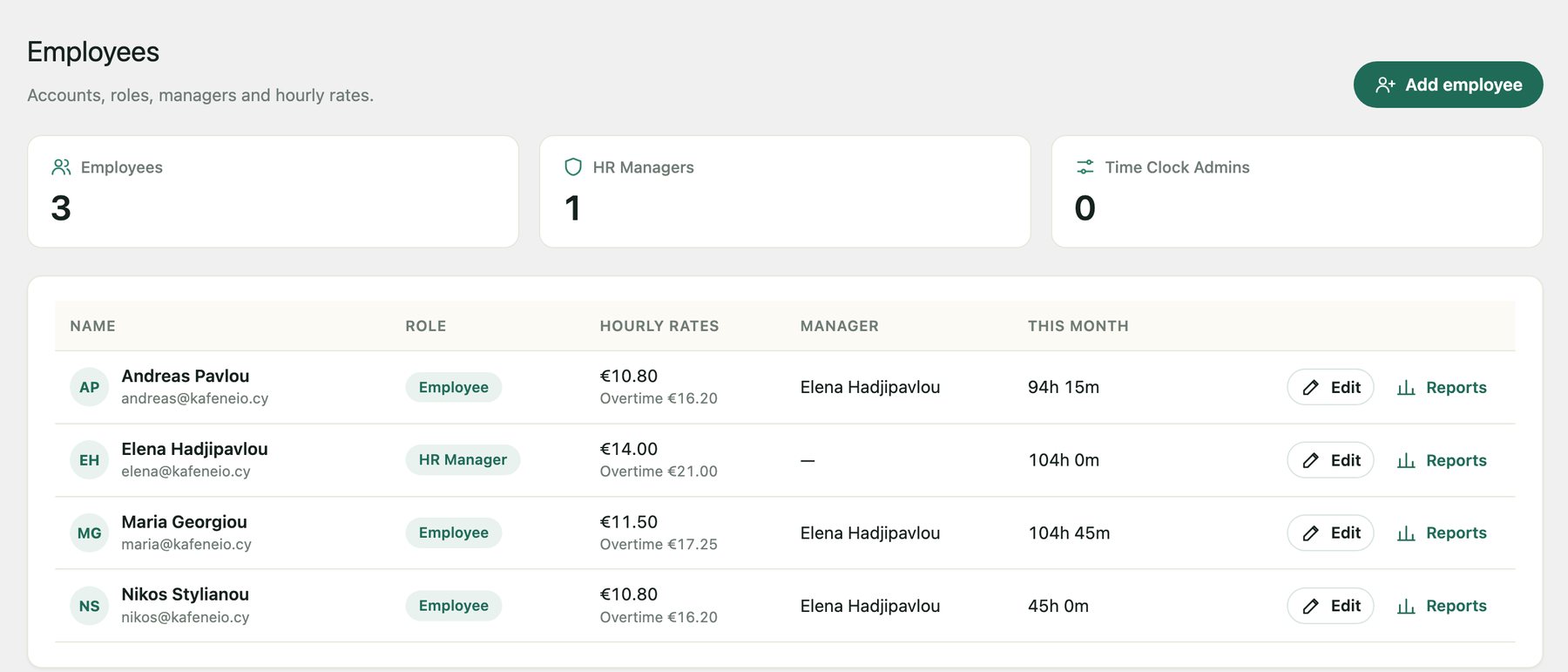
Go to Time Clock → Employees → Add employee.
- Name and email. The welcome email holds the username and a one-time link to choose a password. No password travels by email.
- Role. Employee clocks in and sees their own hours. HR Manager (Pro) also sees and manages a team. Time Clock Admin manages everything.
- Manager. The manager sees the reports of the employee and sets their break rule.
- Start and end date. Nobody can clock in before the start date or after the end date.
- Hourly and overtime rate. Used for pay in Pro. Every shift keeps the rate of the day it was worked, so a raise never changes last month.
What your staff see
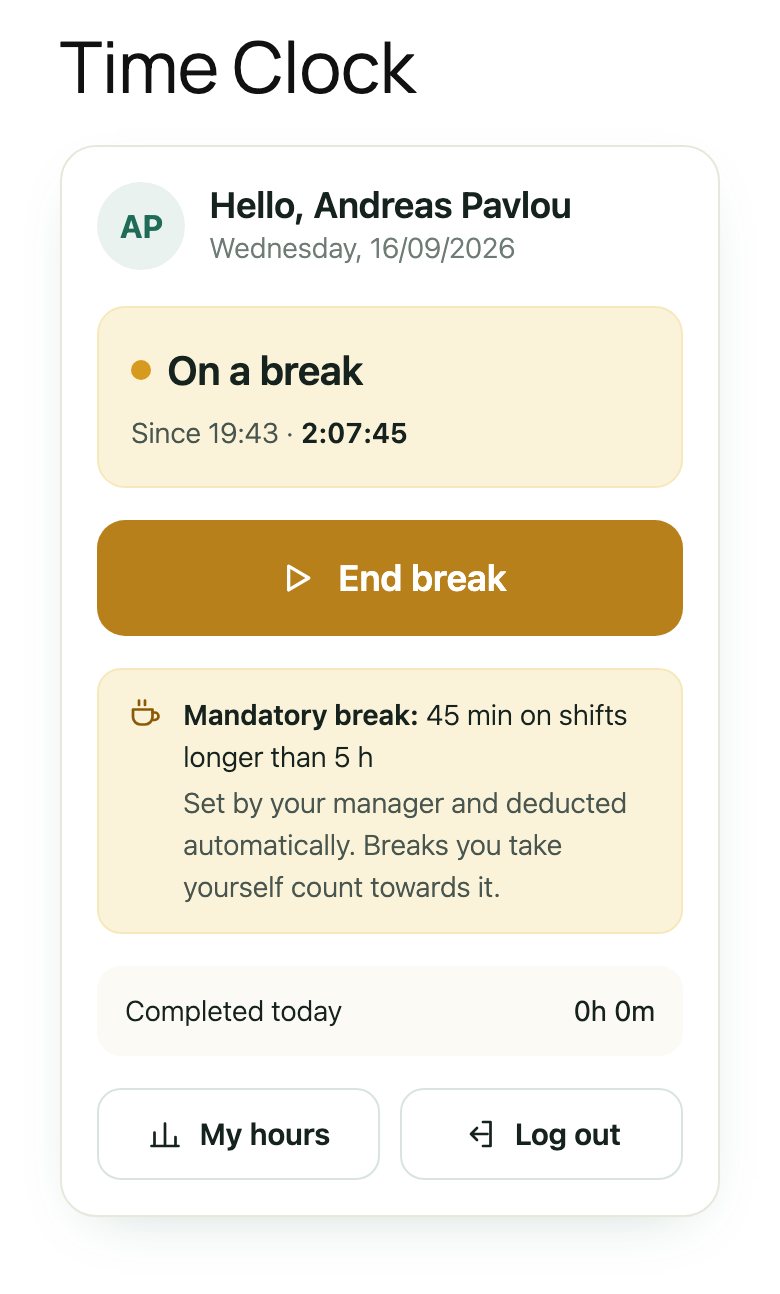
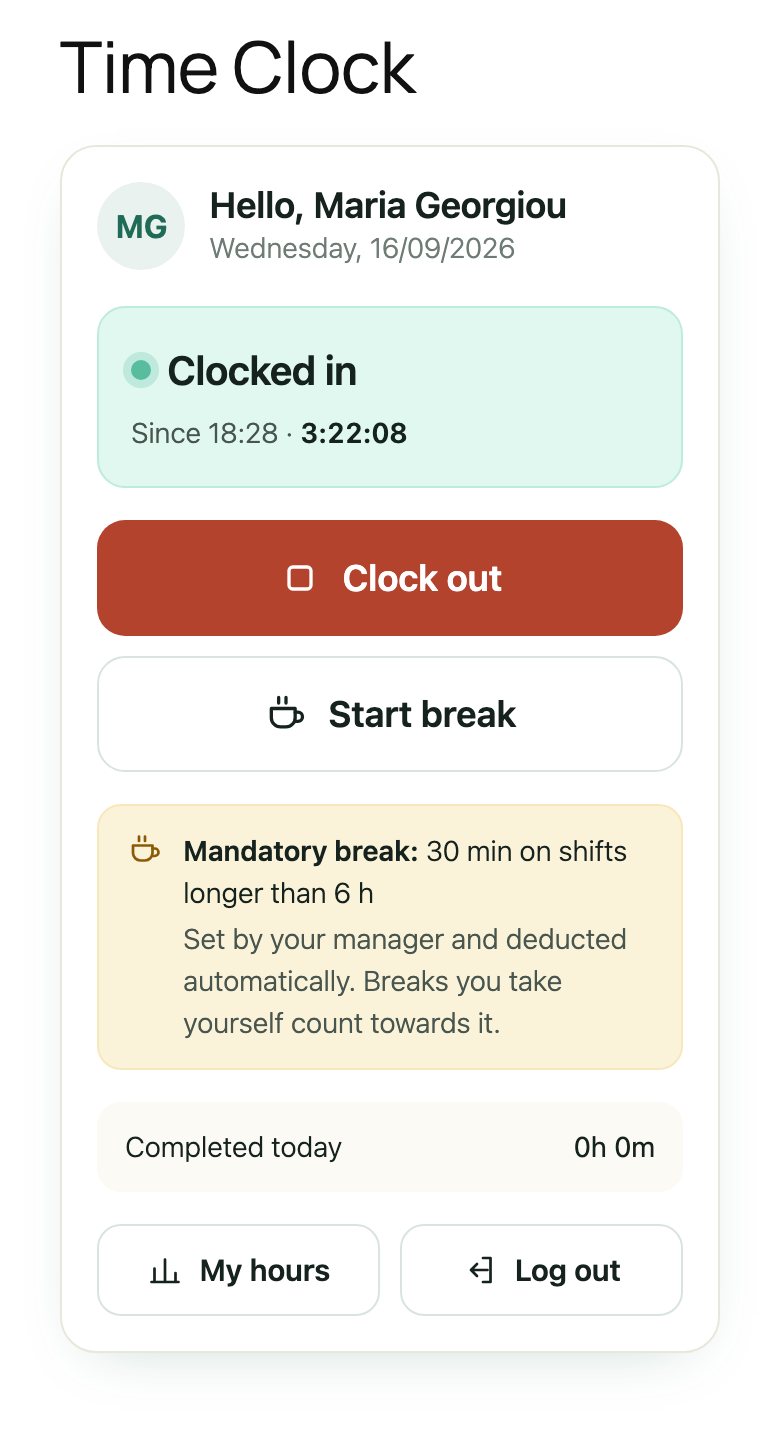
Send your team the link to the Time Clock page. On a phone, Add to Home Screen turns it into an app icon that opens straight on the clock.
| When | They tap | What happens |
|---|---|---|
| 08:00 | Clock in | The status turns green and the counter starts. |
| 12:00 | Start break | The break starts and counts towards the mandatory break. |
| 12:30 | End break | Back to Clocked in. |
| 16:00 | Clock out | “Clocked out. You worked 7h 30m. Break time deducted: 30 min.” |
Location (Pro)
With GPS switched on, the phone first sends a quick position from Wi-Fi and only then asks for a precise fix, so clocking in indoors does not hang. When no position arrives, the shift still starts, unless you made the location required, and the reason is saved with the shift: Location blocked, Location timed out, Location unavailable or Browser without location.
Protected login
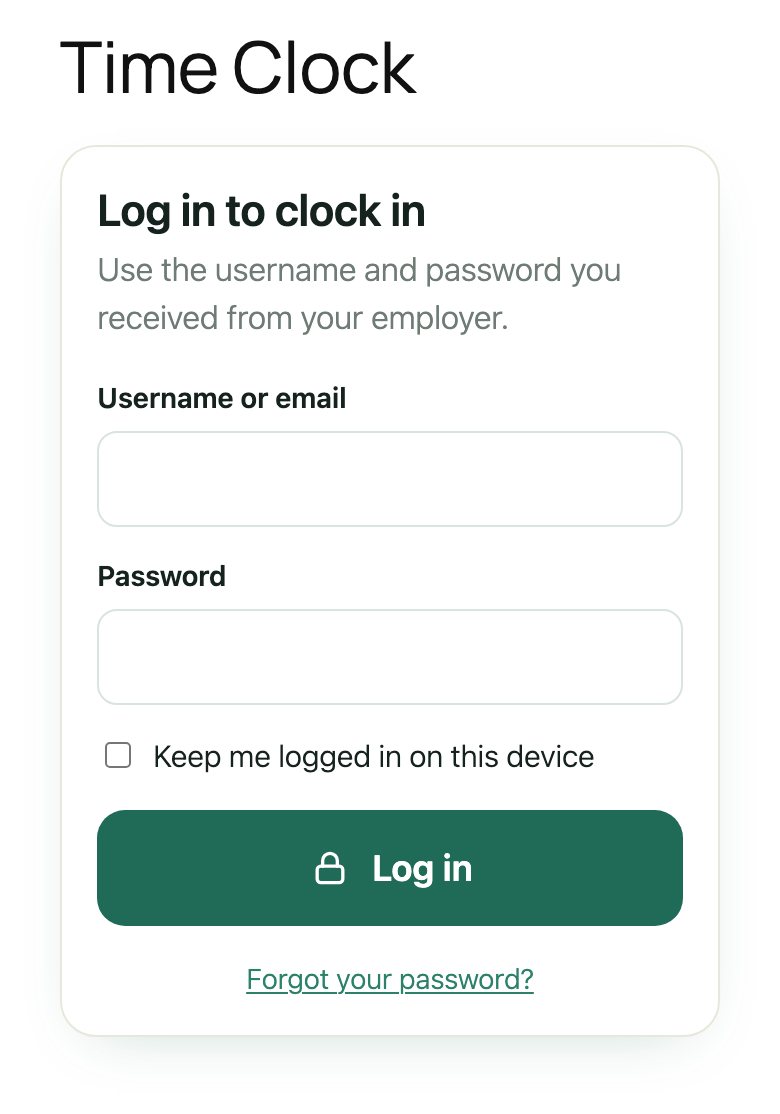
After 5 wrong passwords a time clock account is locked for 15 minutes and the login screen says so. The clock screen follows the language of your site: English, Greek or Russian.
Mandatory breaks your staff can see, but not skip
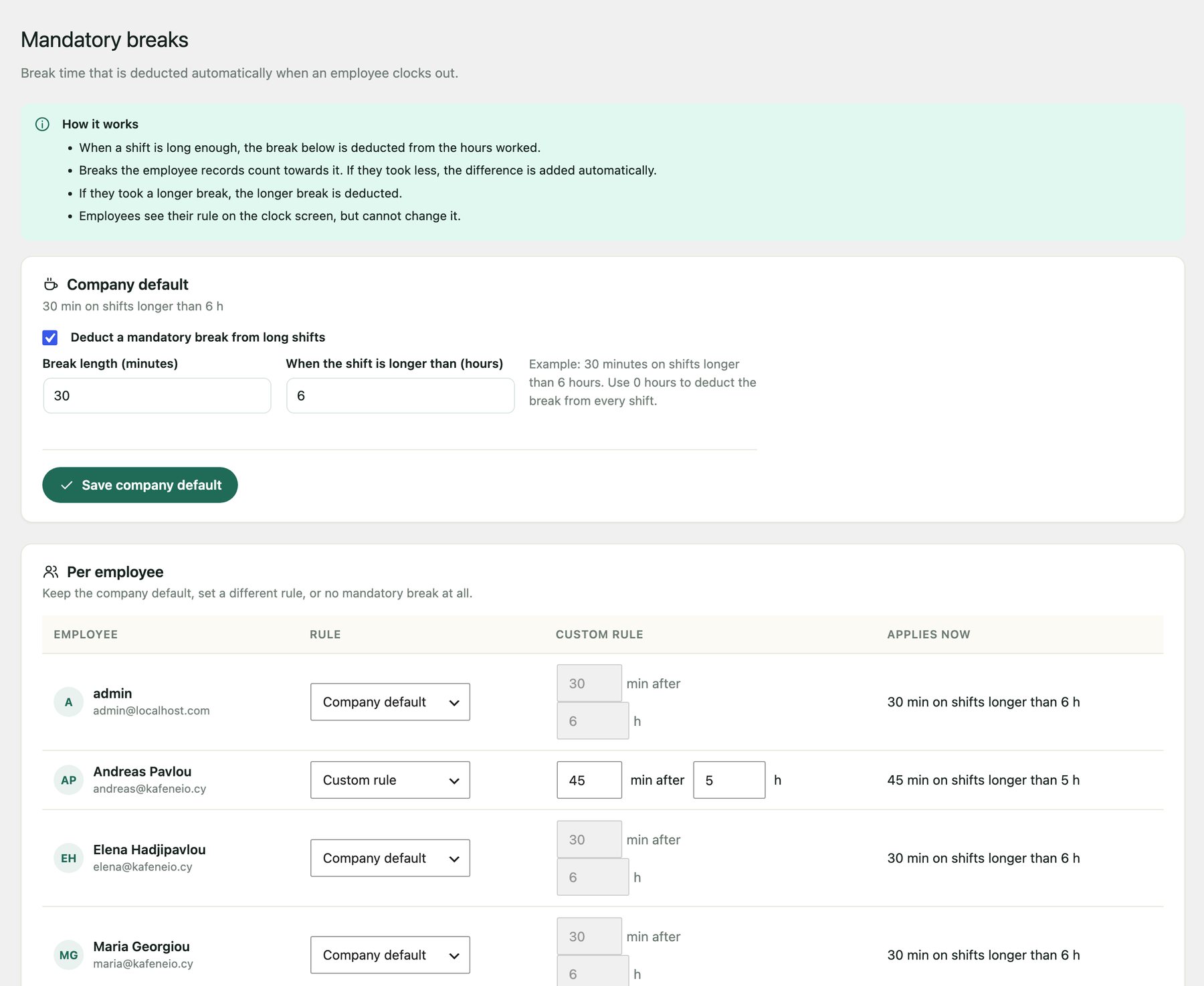
Under Time Clock → Breaks set the company rule, for example 30 minutes on shifts longer than 6 hours, and a different rule for an employee where needed. At clock out the plugin compares the break the employee recorded with the rule and deducts the longer of the two.
| Shift | Took | Deducted | Paid |
|---|---|---|---|
| 08:00 - 16:00 | 0 min | 30 min | 7h 30m |
| 08:00 - 16:00 | 10 min | 30 min | 7h 30m |
| 08:00 - 16:00 | 45 min | 45 min | 7h 15m |
| 09:00 - 13:00 | 0 min | 0 min | 4h 0m |
Rule in this example: 30 minutes on shifts longer than 6 hours.
Who decides
Administrators set the company rule and the rule of any employee. HR Managers set the rules of their own team, never their own. Employees only see their rule on the clock screen.
Mandatory breaks are part of Pro. Your records stay exactly where they are: the feature switches on the moment you activate Pro.
Fix a forgotten clock-out in 30 seconds
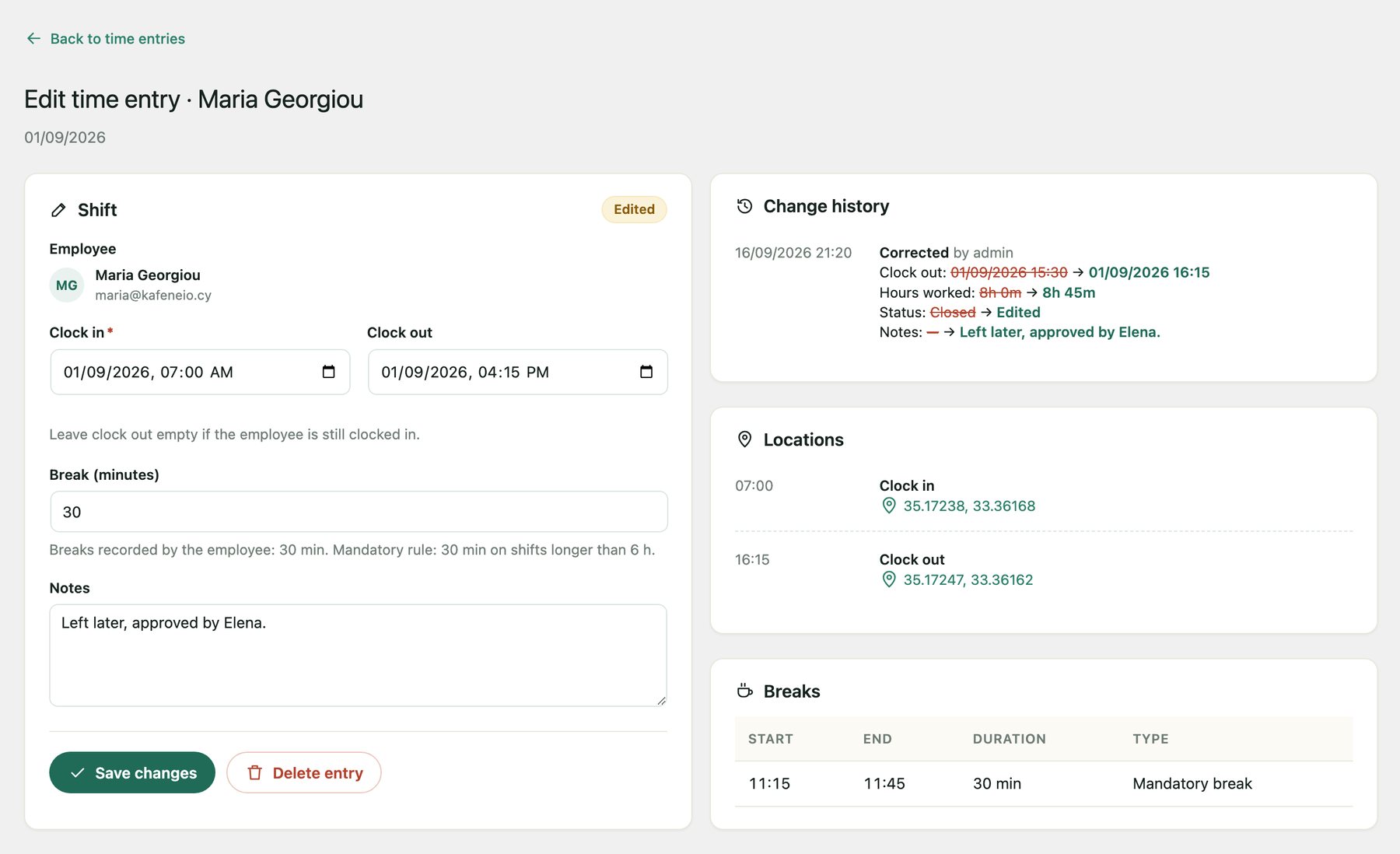
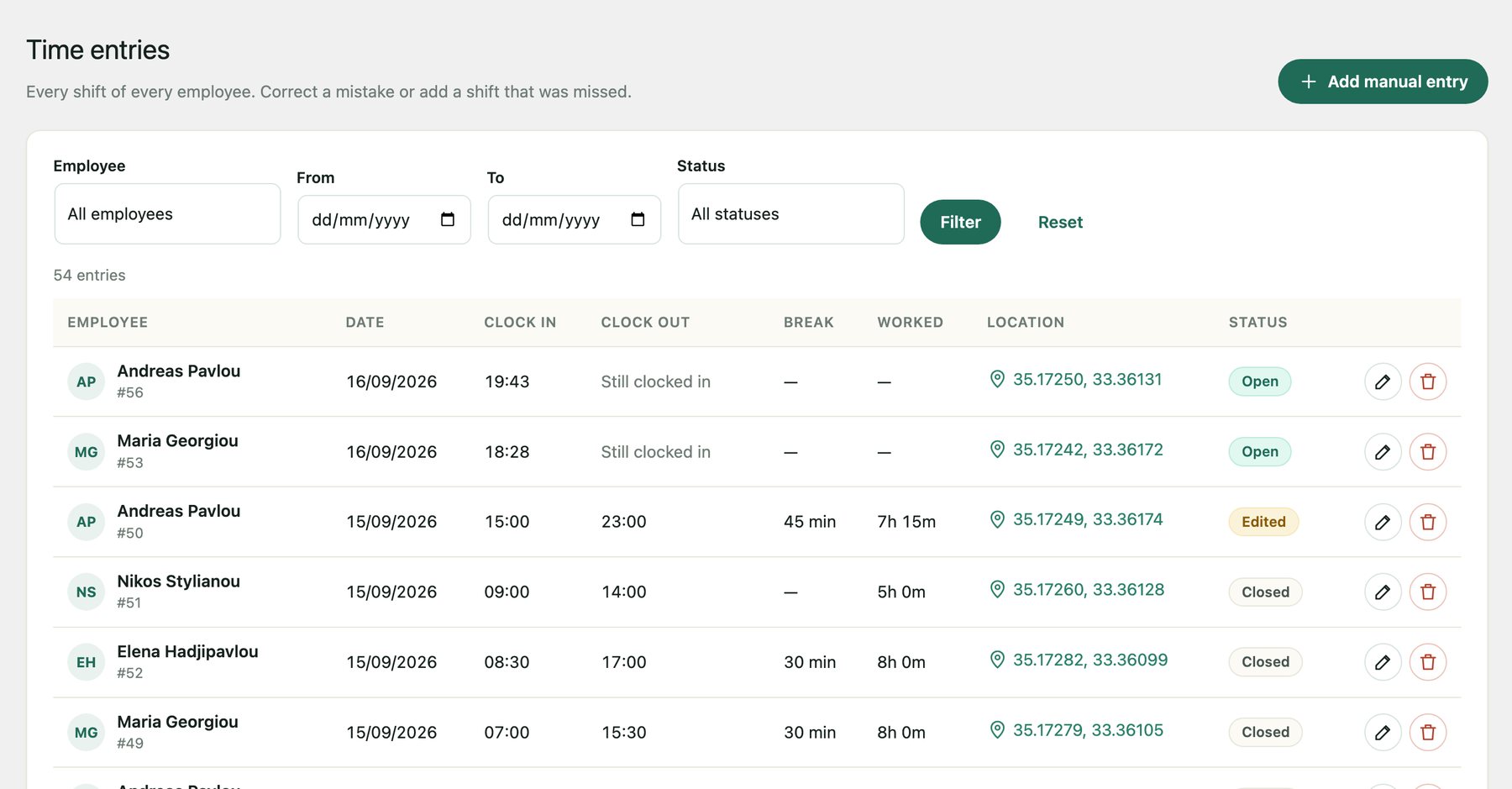
Open Time Clock → Time Entries. Find the shift that shows Still clocked in, press the pencil, type the real clock out time and save. The shift is marked Edited and counts fully in reports and payroll.
Every change is recorded
Every manual entry, correction and deletion is kept in the Change history: the old and the new value of each field, who made the change and when. It sits next to the shift, and it is included when an employee asks for their personal data. The record of a deletion stays too.
Adding a shift by hand
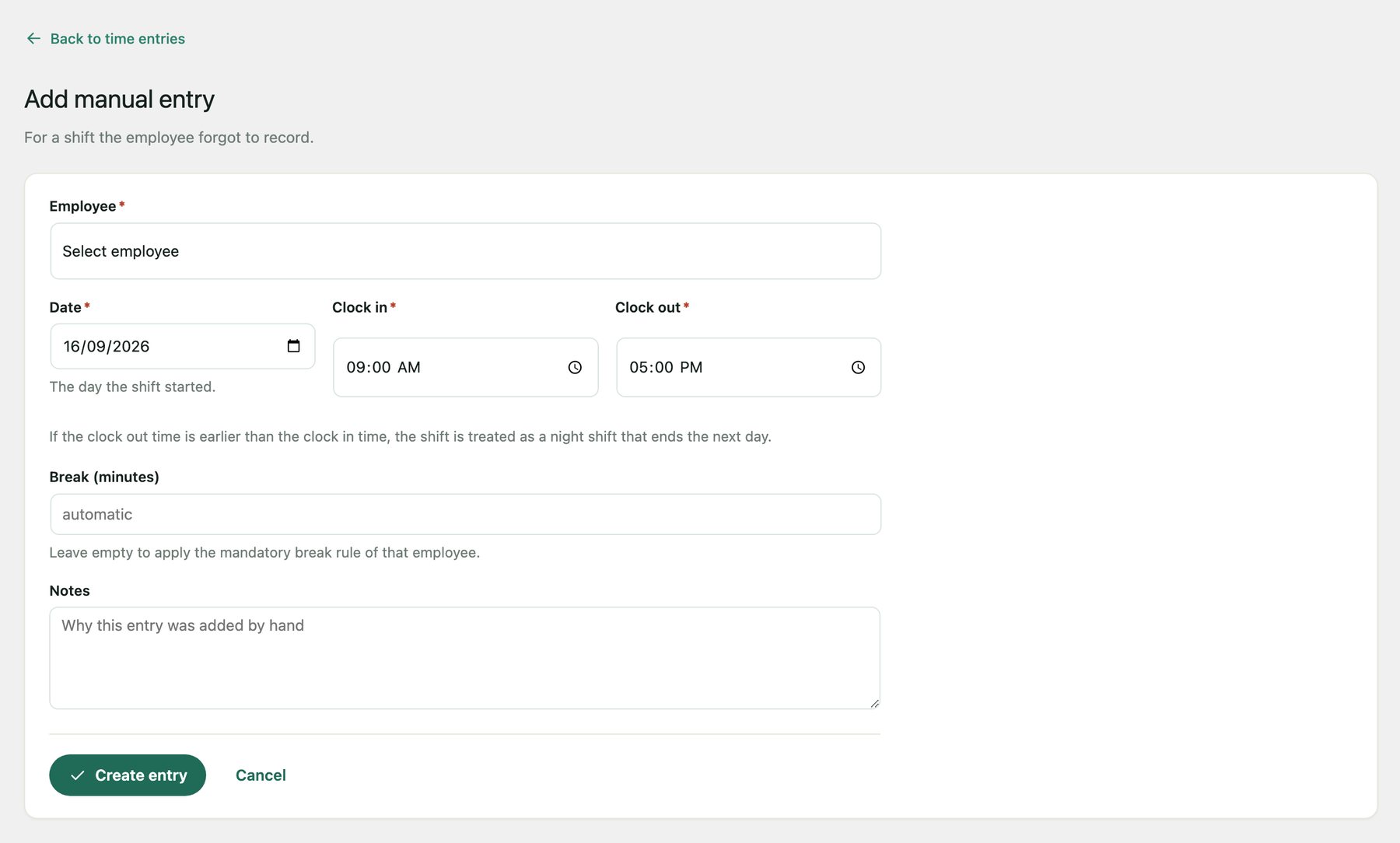
- Night shifts: a clock out earlier than the clock in (22:00 to 06:00) ends the next morning.
- Breaks: leave the break empty and the mandatory rule of the employee is applied.
- Overlaps: a shift that overlaps another one of the same person is refused, so the same hours are never paid twice.
Reports ready for payroll
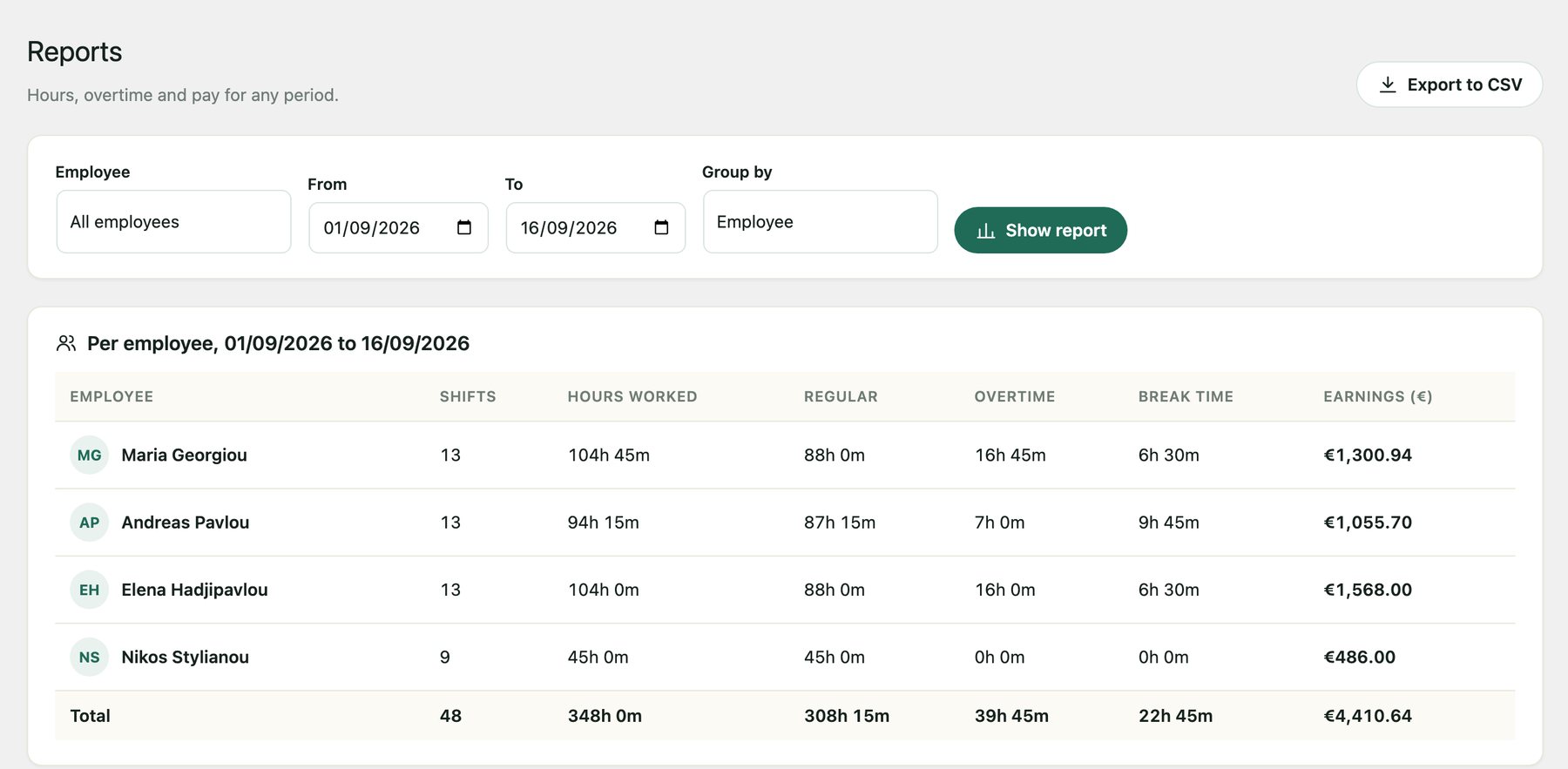
Time Clock → Reports: choose the employees and the dates, then show every shift, or group them per employee or per day (Pro).
How overtime is counted (Pro)
Hours above the daily limit become overtime first. What is left fills the weekly limit, and anything beyond it is overtime too, so no hour is counted twice. Weeks are always counted whole, even when a report starts in the middle of a week.
| Day | Worked | Regular | Overtime |
|---|---|---|---|
| Mon | 9h | 8h | 1h |
| Tue to Thu | 8h × 3 | 24h | 0h |
| Fri | 9h | 8h | 1h |
| Sat | 5h | 0h | 5h |
| Week | 47h | 40h | 7h |
Daily limit 8h, weekly limit 40h, week starting on Monday.
The same numbers everywhere
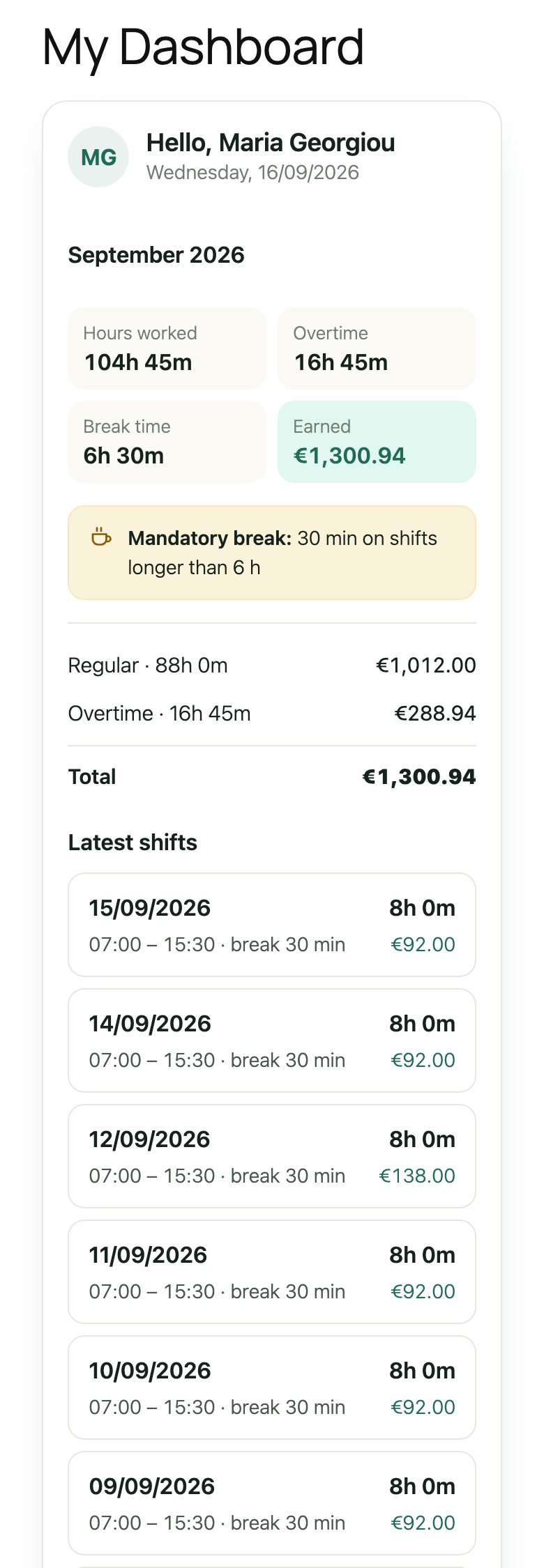
The My hours page of the employee, your reports and the CSV export come from one calculation. If someone questions their pay, you are both looking at the same figure.
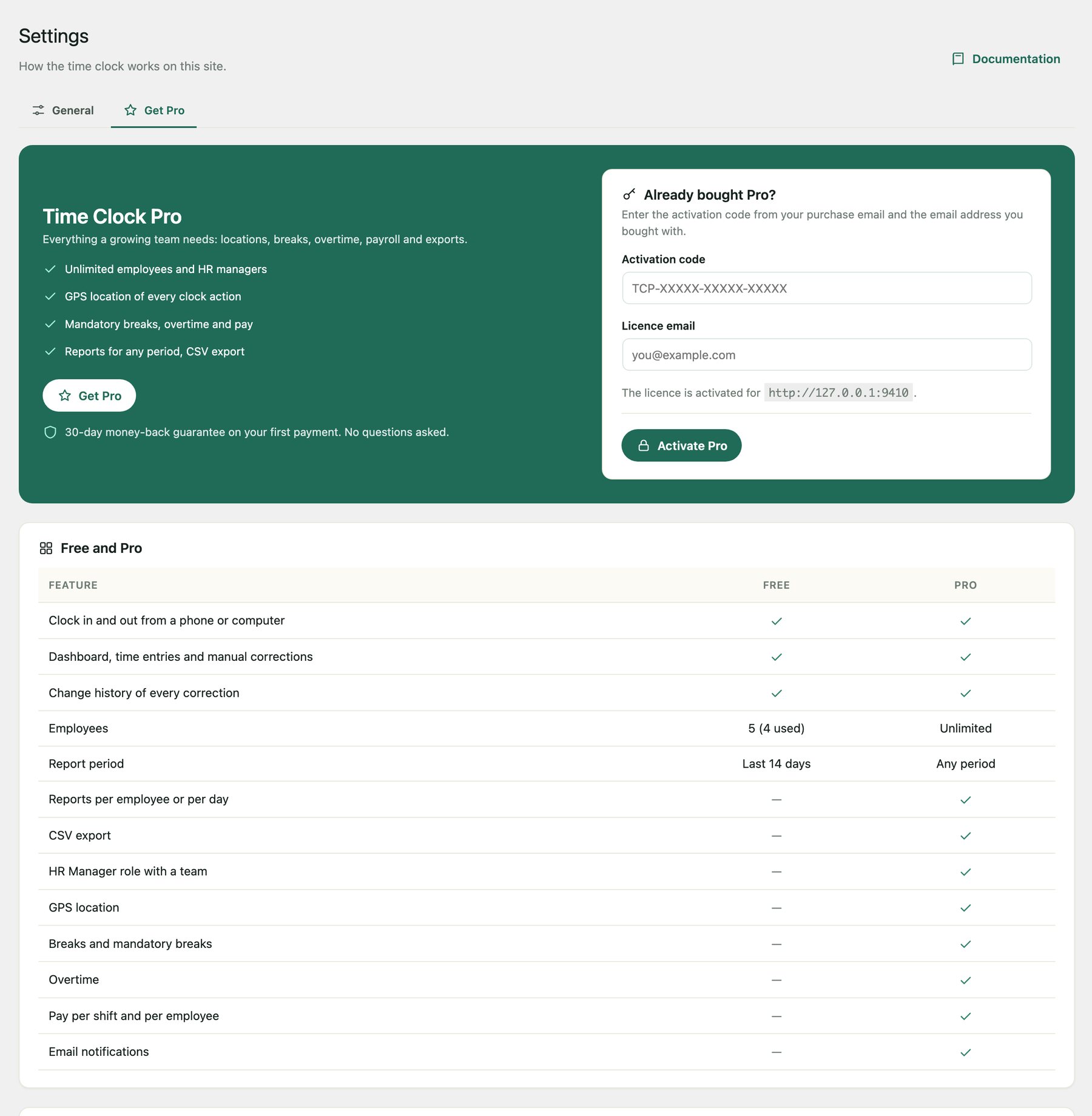
Free shows the last 14 days. Pro shows any period and exports to CSV for your payroll software.
Who is working right now
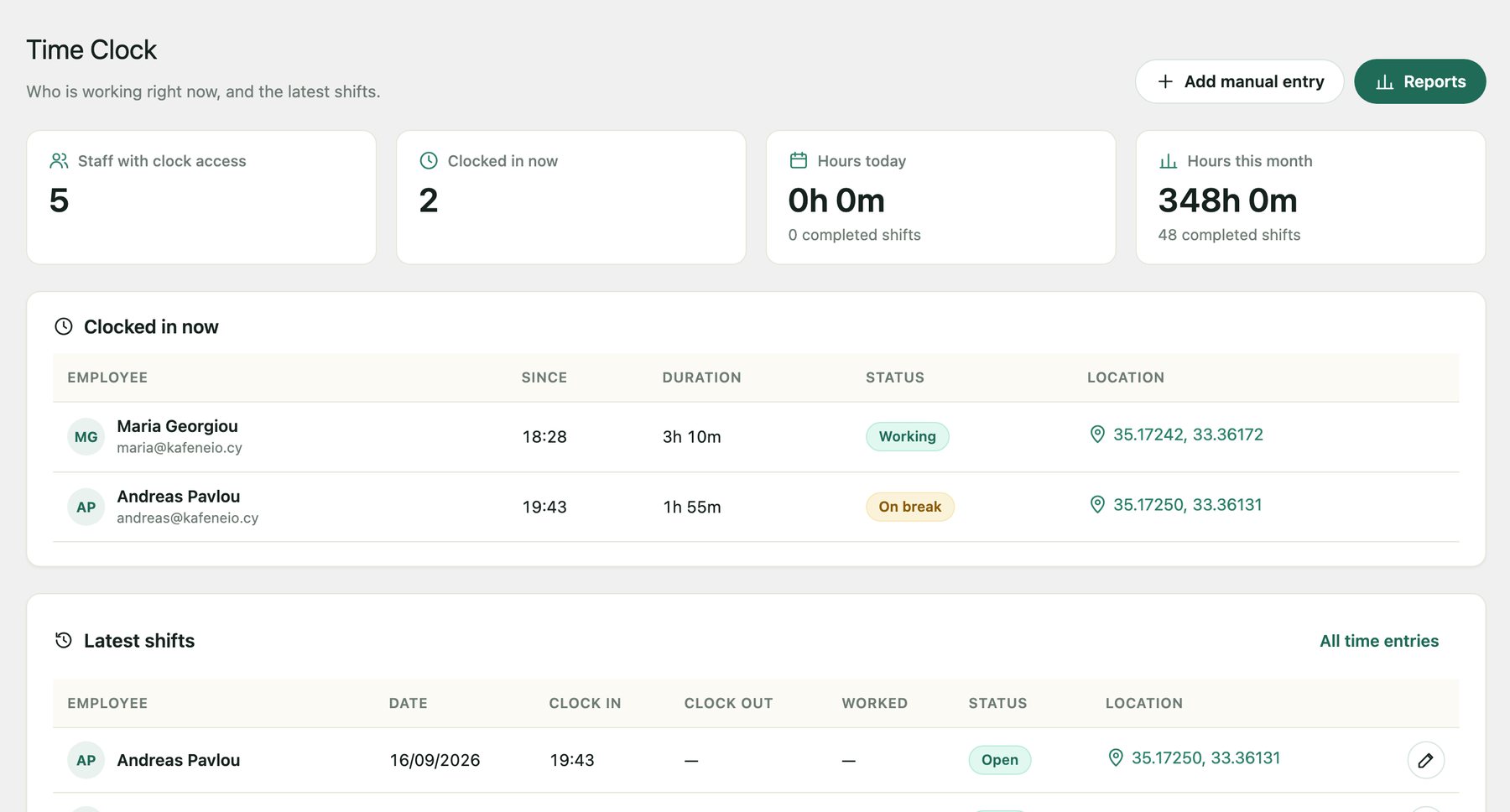
Time Clock → Dashboard shows who is clocked in, for how long, who is on a break, the hours of today and of this month, and the latest shifts.
Who sees what
| Can they | Employee | HR Manager (Pro) | Time Clock Admin |
|---|---|---|---|
| Clock in and out | Yes | Yes | Yes |
| See their own hours | Yes | Yes | Yes |
| See the hours of others | No | Their team | Everybody |
| Set mandatory breaks | No | Their team | Everybody |
| Correct time entries | No | No | Yes |
| Add staff and change settings | No | No | Yes |
A manager only ever sees the people assigned to them. A Time Clock Admin manages staff, but can never change a WordPress administrator account.
Every setting in plain words
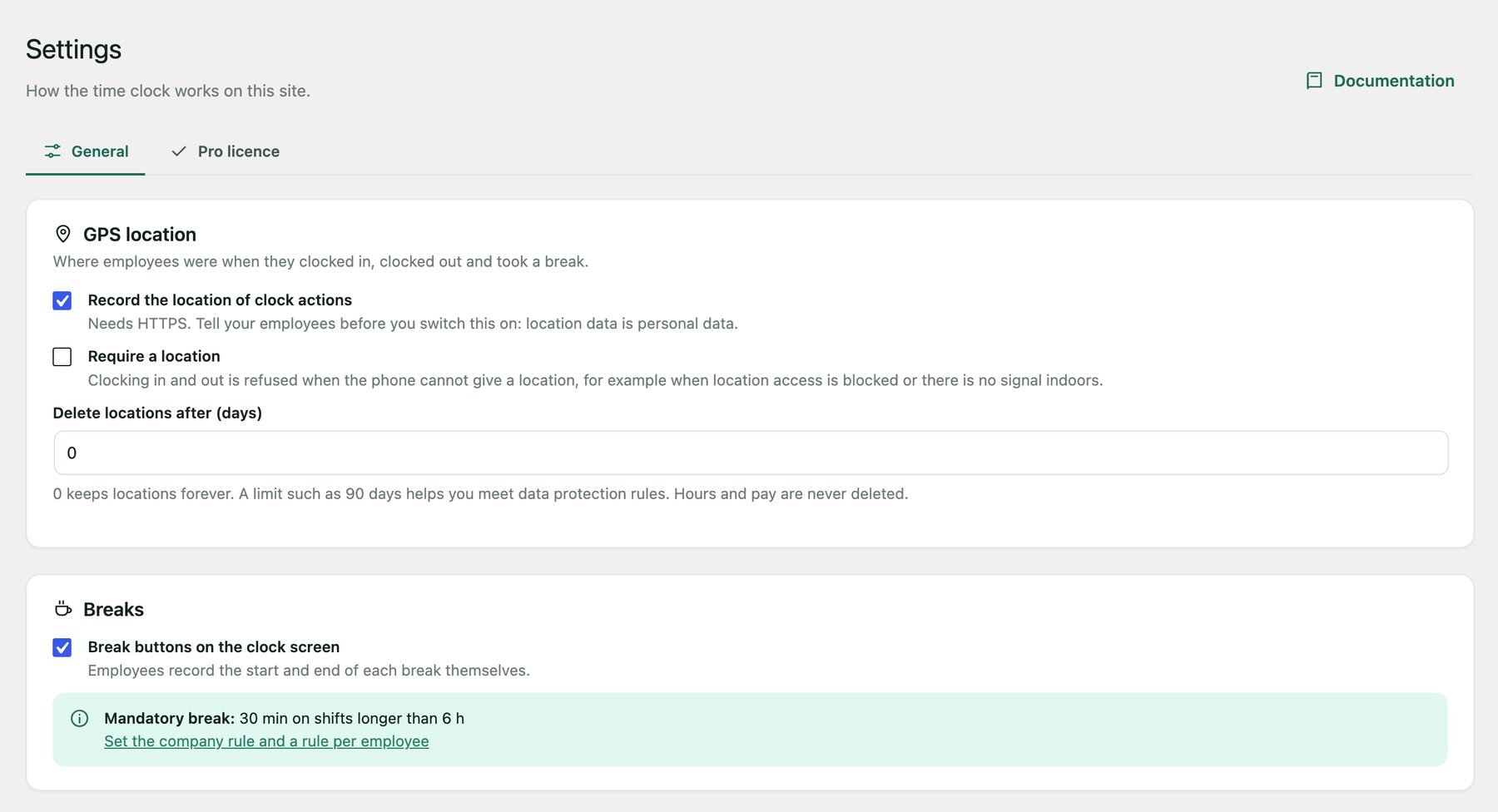
Time Clock → Settings → General.
| GPS location (Pro) | Records where the phone was at clock in, clock out and both ends of a break. Needs HTTPS. |
| Require a location (Pro) | Refuses clocking in and out without a location. Strict: indoors it can fail. |
| Delete locations after (days) | How long locations are kept. Hours and pay are never deleted. |
| Break buttons on the clock screen (Pro) | Shows or hides the break buttons for employees. |
| Email notifications (Pro) | An email when someone clocks in or out, and one reminder per forgotten clock-out, with a copy to you. |
| Overtime (Pro) | Weekly limit, daily limit and the first day of the week. |
| Dates, times and money | Date and time formats for the time clock screens, and the currency symbol. |
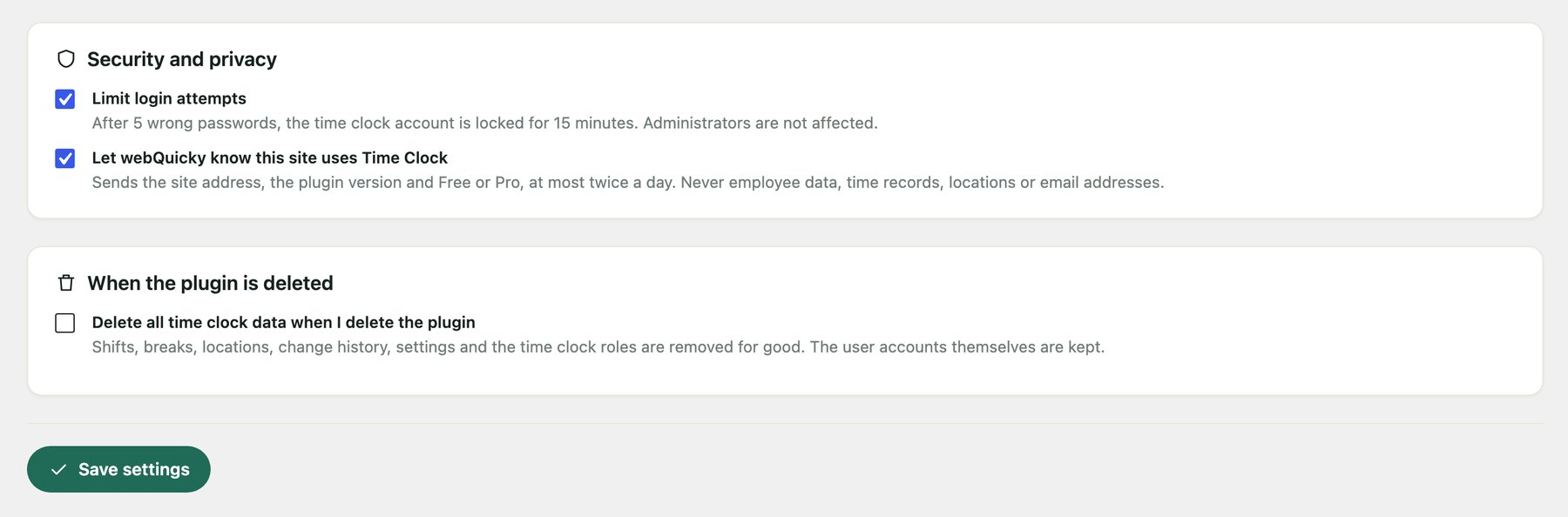
| Limit login attempts | 5 wrong passwords lock a time clock account for 15 minutes. Administrators are not affected. |
| Let webQuicky know this site uses Time Clock | Sends the site address, the plugin version and Free or Pro. Nothing else. |
| When the plugin is deleted | Off by default, so deleting the plugin keeps every record. Switch it on only if all time clock data should go too. |
Updates and languages
Updates
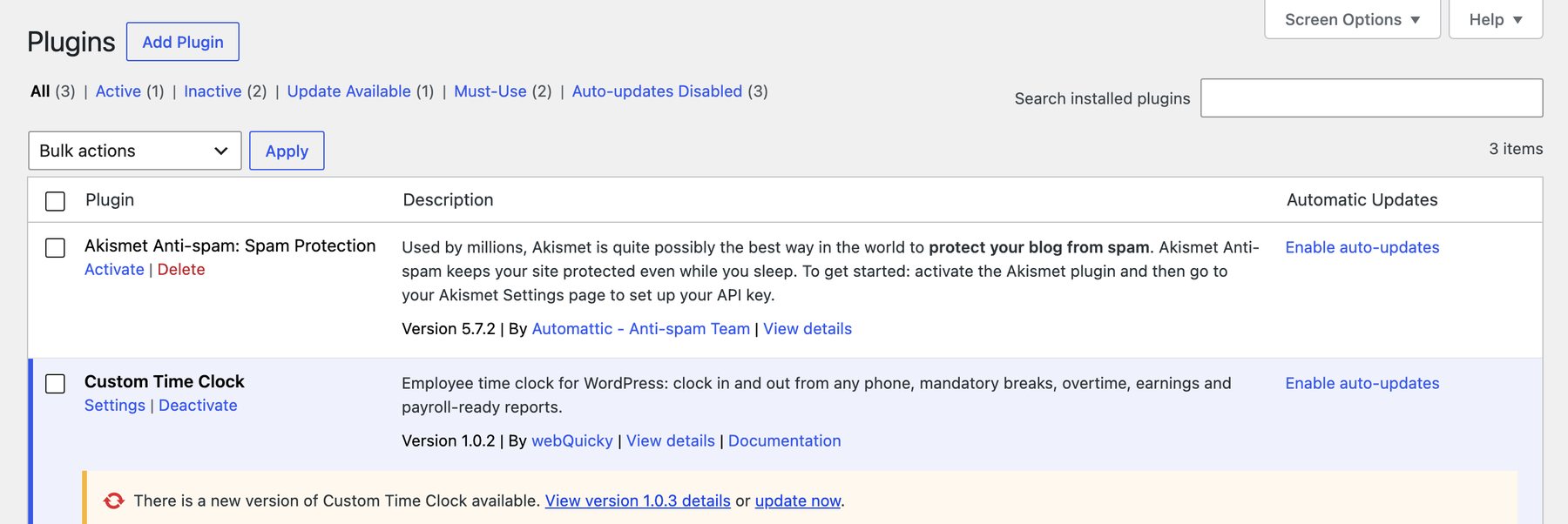
New versions appear under Dashboard → Updates and on the Plugins screen, like any other plugin, straight from webquicky.com. Your records and settings stay in place and the database updates itself.
Languages
Time Clock speaks English, Greek and Russian. The clock screen follows the language of the site (Settings → General); the admin screens follow the language each user chose in their Profile.
Help inside WordPress
Time Clock → Documentation opens this guide in your language.
Outgrown Free? Pro runs the whole payroll month.
Free is a complete clock for up to 5 employees. Pro is for the business that pays by the hour.
- Unlimited employees, and HR Managers for team leads
- Mandatory breaks, hourly rates, overtime and pay
- Reports for any period, per employee or per day, with CSV export
- GPS location and email notifications
30-day money-back guarantee. Not right for you? Email [email protected] within 30 days of your first payment and you get it back in full. No questions asked.
Already bought it? Enter the activation code and your email under Time Clock → Settings → Get Pro.
Your data stays on your site
Every shift, rate, location and change lives in your own WordPress database. Only three things leave it: the Pro licence check, the check for updates, and an optional note that your site uses the plugin, which you can switch off.
If an employee asks for their data, Tools → Export Personal Data includes their shifts, locations and change history. Tools → Erase Personal Data removes their locations; the hours stay, because payroll records have to be kept.
Before you switch GPS on, tell your staff what you record, why, and how long you keep it.
Quick answers
The reason appears in red on the clock screen. Usually a location is required and the phone blocked it: allow location for the site in the browser settings, or switch Require a location off.
A cached copy of the page went stale. Reload and try again. If it keeps happening, exclude the Time Clock page from page caching.
After 5 wrong passwords the account waits 15 minutes. If they forgot the password, open their page under Employees and press Send reset email.
Choose your city under Settings → General → Timezone instead of UTC, then correct older shifts in Time Entries.
Corrected shifts count everywhere. Check that the shift has a clock out time: an open shift is not finished work yet.
Open Time Clock → Settings. If the licence server could not be reached, Pro keeps working for 7 days: press Check licence now on the Pro licence tab to see until when. If the licence expired, the Get Pro tab says so; renew it, or write to [email protected].
Set their End date. After that day they cannot clock in, and all their hours stay in your reports.
Yes. Pro comes with a 30-day money-back guarantee on your first payment, monthly or annual. Email [email protected] from the address you bought with, within 30 days of the purchase. You get the full amount back, the subscription is cancelled, and your site continues on Free with all its records.
Unless Delete all time clock data when I delete the plugin was switched on, every record is still in the database. Install the plugin again and everything is back.
Custom Time Clock 1.0.2 by webQuicky.